

You write up last night's meeting notes by hand, chase the overdue invoice, scan the support queue – all before 9 AM, the same way you did it last Tuesday.
Most busy professionals suspect AI could handle that stuff, but which tool does which job is never obvious from the outside.
The real picture: eleven of those tasks each have one tool better suited to them than any other. The limiting factor is never the AI's speed – most tasks take seconds to two minutes – but the review time the human still owns.
This list names the best tool for each task, splits the time into three honest parts – by hand, AI generation, and review – and states the one catch to read before anything is handed over.
Pick the section that matches your biggest daily drain, check the catch, and be running on the free or lowest-cost tier of the right tool tonight.
| Task | Best tool | By hand (min) | AI time | Review & edit (min) |
|---|---|---|---|---|
| Meeting notes | Granola | 25 | ~45 sec | 5 |
| Morning inbox brief | Claude Duet | 20 | Overnight | 3 |
| Payment-chase emails | Claude Duet | 15 | ~20 sec | 5 |
| Urgent ticket digest to Slack | Tasklet | 15 | 2 min setup, then automatic | 2 |
| Document first draft | Google Gemini | 45 | ~45 sec | 15 |
| Research with citations | Perplexity | 40 | ~60 sec | 10 |
| Process diagram from text | Napkin AI | 30 | ~30 sec | 5 |
| Competitor price monitoring | Browse AI | 45 | 5 min setup, then automatic | 3 |
| Cross-app file and tag tasks | Zapier | 20/week | 10 min setup, then automatic | 2/week |
| Batch file formatting | Claude Cowork | 30 | Runs in background, mins | 5 |
| Simple two-app triggers | IFTTT | 10 each time | 3 min setup, then automatic | 1/week |
Communication and Documents
The tasks that drain the most time before lunch are almost always communication tasks: write-ups, briefings, payment reminders, and queue scans.
Each one in this section involves text the reader already has somewhere — a call recording, a calendar, an invoice — and an AI tool that reads it so the reader does not have to.
1. Granola Captures Meeting Notes While You Talk
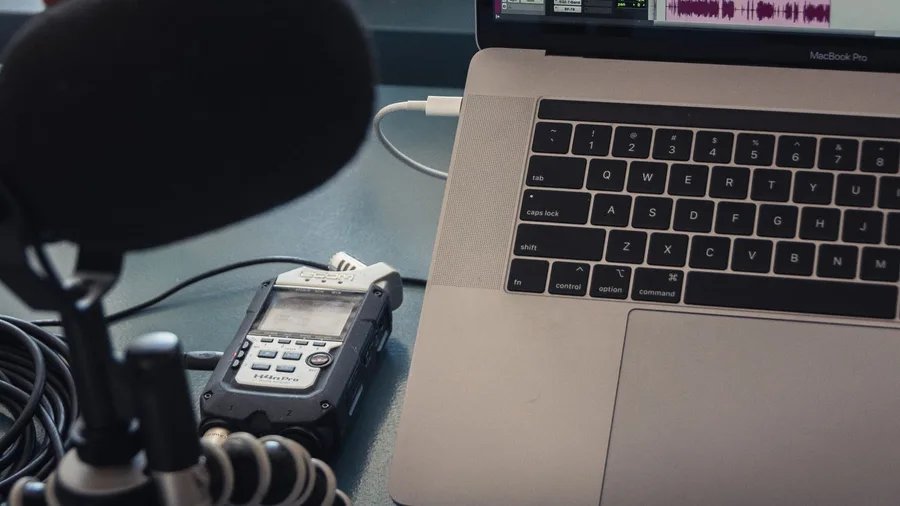
Twenty-five minutes after every meeting vanishes reconstructing who said what, which tasks landed on whom, and when each is due – all from memory and half-legible notes.
Granola's free tier listens during the call inside any app, no word limit, and spits out a structured summary with action items about 45 seconds after you hang up. Full plan terms are on Granola's own page.
Catch: Granola mishears names, numbers, and technical terms. Scan the transcript before forwarding anything – especially a deadline or a task assigned to a specific person. Fix those, and you're done in about 5 minutes instead of 25.
💡 Tip: Granola mishears technical terms and acronyms most often. Add a quick glossary of your team's jargon to the notes template so the AI has context before the call starts.
2. Claude Duet Briefs You Before Your First Click

The first 20 minutes of many workdays go to reading email and calendar – not because it is slow work, but because sorting what is urgent from what can wait takes real effort before any task even starts.
Claude Duet, a U.S.-only research preview for Claude Pro ($20/mo or $200/yr) and Max subscribers, pulls from 6,000-plus connectors and builds a work summary overnight. The briefing is waiting at login – nothing generated while you sit there.
Catch: Claude Duet is U.S.-only. Hark offers similar morning briefings but lists its memory feature as unavailable in the EEA, U.K., and Switzerland. Check where each tool works before relying on it daily. Once confirmed, the review takes about 3 minutes.
3. AI Drafts Payment-Chase Emails From Live Invoice Data

Chasing overdue invoices by hand means opening each one, copying the amount and due date, and writing a professional email that does not sound annoyed. For a batch of five invoices, that takes roughly 15 minutes.
Never paste invoice data, account numbers, or any financial records into a chatbot. The safe method: Claude Duet connects directly to QuickBooks or Stripe via a Claude Marketplace connector and reads the overdue invoice data in place. No figures leave their source system.
Claude Duet drafts the chaser email in about 20 seconds per invoice. The tone, the amount, and the due date pull straight from the live record – nothing typed by hand.
The catch on sending: Claude Duet will not fire the email without explicit approval. Transferring money between accounts is off-limits even with consent. The user reviews and clicks send. That review takes roughly 5 minutes for a batch.
By hand vs. with AI: ~15 min per batch manually → ~20 sec draft + ~5 min review; saves roughly 10 minutes per batch, with financial data staying inside QuickBooks or Stripe throughout.
⚠️ COMMON MISTAKE
Never Paste Invoice or Client Data Into a Chatbot
On free and personal plans, chat content can be used to improve AI models unless you turn that off in settings. Use a connector that reads data in place — like Claude Duet's QuickBooks or Stripe integration — so sensitive numbers never leave their source system.
4. Tasklet Posts Your Urgent Ticket Digest to Slack
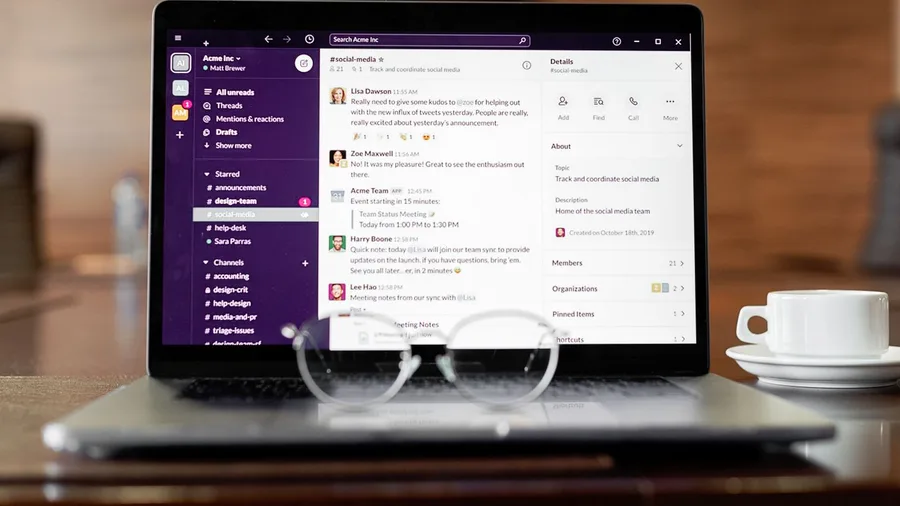
Scanning a support inbox by hand each morning takes roughly 15 minutes. The bigger problem: the team may already be halfway through low-priority tickets before anyone spots the urgent ones at the top.
Tasklet turns one plain-English sentence into a scheduled automation. Type "Check the support inbox every morning at 6 AM and post an urgent ticket digest to Slack" and the workflow is created and scheduled from that single instruction.
Prompt to copy
Check the support inbox every morning at 6 AM, identify any tickets marked urgent or unanswered for more than 12 hours, and post a brief digest listing each ticket's subject line and sender to the #support Slack channel.
Tasklet is a newer tool, so confirm current pricing, integrations and rate limits on its own page before the whole team depends on it.
Setup takes about 2 minutes; a daily spot-check takes 2 more. That recovers roughly 13 minutes every working day, and everyone sees the priority list before opening email.
Research and Visuals
Research and visual work sit in the middle of most professional days: a report needs a first draft, a decision needs supporting data, a presentation needs a diagram that took an hour to build last quarter.
The three tools in this section each handle one of those jobs — and the catch in each is the same category: AI-generated content that looks authoritative but contains an error the reader has not yet found.
5. Gemini Drafts Documents Without Leaving the Chat

A structured first draft – sections, headings, placeholder data – lands in the Gemini chat window in roughly 45 seconds. The blank page never appears.
Step 1: Open Gemini and describe the document. Type what you need – report type, topic, audience, rough length. Gemini creates, previews and edits documents, spreadsheets and presentations directly in the chat. No downloading and re-uploading.
Step 2: Review the live preview, then edit inline. Click any section to revise it inside the same window. What you should see: a full skeleton with section headers and sample content ready to overwrite.
Hallucination is when an AI states something false with full confidence – invented figures, made-up citations. Gemini does this. Check every number and every source before the document leaves your hands. By hand: ~45 min. Draft: ~45 sec. Review: ~15 min.
6. Perplexity Researches and Shows Exactly What to Verify

The problem with AI research is not speed – it is knowing which facts to trust. Perplexity prints a cited source link beside every claim, so you check specific sentences rather than restarting from scratch.
The free plan covers unlimited basic searches and a limited number of advanced Pro searches each day. A hand-built sourced summary takes roughly 40 minutes; Perplexity returns one in about 60 seconds.
The catch: Perplexity can misread a source or attach the wrong citation to a claim. Open each linked page and confirm every key fact. That verification runs about 10 minutes – targeted, not a full research restart.
💡 Tip: Source links turn fact-checking into a 10-minute targeted job rather than a full research restart. That is the real time saving — not the answer itself, but what you do not have to rebuild.
Perplexity Free Plan — At a Glance
🔍 Basic searches
Unlimited
⚡ Advanced Pro searches
Limited per day
🔗 Source links
Every answer
⏱️ Answer time
~60 seconds
✅ Fact-check time saved
~30 min/session
The catch
Perplexity can misattribute a source even when the link is real — open every cited page and confirm the key claim yourself.
7. Napkin AI Turns a Paragraph Into a Slide-Ready Diagram
Before betting on a branded export, check Napkin AI's current plan page. Export formats and logo options sit behind paid tiers, and those tiers change. Promise a client a branded chart only after confirming what the live plan actually covers.
Once a research summary is solid, a visual is often the fastest way to make it land – and that is exactly what Napkin AI handles.
Paste a paragraph of written findings into Napkin and a diagram appears in roughly 30 seconds. Logo, color mode and background are all adjustable before download.
Writers and analysts without design skills routinely skip charts entirely because building one manually in a slide tool takes about 30 minutes for a single visual. That math changes when generation takes half a minute.
Time split: ~30 min by hand → ~30 sec to generate → ~5 min for style tweaks and download. That is a usable diagram in under six minutes for anyone who cannot justify a half-hour detour into PowerPoint.
Handing a Task to AI — Do It Right vs. Common Mistakes
Do This
- Use a connector so sensitive data stays in its source system
- Check every fact, figure, and source link before sharing
- Review AI output before it syncs to any client-facing folder
- Set a spending limit on any paid API before connecting it
- Start on the free or lowest tier and verify the tool works for your specific page or app
Avoid This
- Pasting invoice data, passwords, or client files into a chatbot
- Publishing AI-generated research without opening the cited sources
- Letting an agent edit shared files without reviewing its change log
- Building a team workflow on a new tool before testing its integrations
- Treating a hallucinated figure as correct because it looks precise
Automation Without Code
The four tools in this section do not write text or generate images. They move data, watch pages, run file tasks, and chain apps together — and they do it on a schedule while the reader is asleep.
None require writing a line of code. Each one is set up once and then runs on its own, which is why the setup time is the most important number to check.
8. Browse AI Monitors Pages and Alerts You to Changes

Forty-five minutes every week, to check competitor prices or job listings by hand – and the data is already hours old before the spreadsheet is updated.
Browse AI replaces that session entirely. Point it at any public webpage, set a schedule, and it sends an alert the moment a tracked value changes. No code required.
A free plan is available; paid plans start at $19/mo billed annually, with current tier details at Browse AI's own page.
The catch: some sites actively block automated scrapers, and the free plan has usage limits. Test Browse AI against the specific target page before building any workflow that depends on it running reliably.
Before: 45 minutes weekly, manual, with data that may be days old before anyone acts. After: 5 minutes of one-time setup, then a 3-minute alert review when something actually changes.
That gap – 45 minutes reduced to a 3-minute check – is the largest in this list. The reader stops monitoring and starts responding only when there is something worth responding to.
9. Zapier Moves Files and Tags Messages Across Your Apps

Every time a file lands in one app, you probably do the same three clicks in another. That daily friction adds up to roughly 20 minutes a week – and it is exactly the kind of repetitive trigger that Zapier was built to eliminate.
Zapier links thousands of apps and uses AI agents to handle the logic. An AI agent is a small program that watches for a trigger and fires a set of actions automatically.
A single completed rule – called a Zap – handles file movement, message tagging or reminders without any manual steps after setup.
Ten minutes of one-time setup is all it takes. From week two onward, those 20 minutes come back automatically every week, plus a two-minute spot-check to confirm things ran.
Zapier's free tier has limits, and the AI agent features require a paid plan. Check pricing and current tier details on Zapier's own page before any team workflow depends on it.
Best AI Tools by Weekly Time Saved
10. Claude Cowork Runs File Tasks While You Sleep

Formatting a weekly report by hand means staying logged in and supervising every step – roughly 30 minutes of active attention each time, every week.
Claude Cowork handles that differently. It reads, edits and creates files, runs shell commands, schedules recurring tasks, and connects to Microsoft 365, Google Drive and Slack – all in the background, with no one watching.
The catch: it can edit files without asking at each step. Check its change log before syncing anything to a shared drive or a client-facing folder.
Time split: ~30 min by hand → minutes in the cloud, unattended → ~5 min review on return. Plan pricing is at Anthropic's own page.
🤖 How to Hand a Repeating Task to an AI Tool
Pick the right tool
Match the task to the tool in the table above — a connector-based agent for data tasks, a chat assistant for drafts, a no-code platform for triggers.
Test on the specific input
Run the tool on a real example before scheduling anything — a blocked page, an unsupported app, or a hallucinated figure shows up here, not after it runs overnight.
Set the catch check
Decide before you start what the human review covers: names and numbers in a transcript, cited sources in a research answer, a change log for file edits.
Start on the lowest paid tier
Use the free plan or lowest-cost tier first; upgrade only after the workflow has run without errors for two full weeks.
Schedule the review, not the task
Put a five-minute review slot in your calendar — the AI runs the task, you run the quality check.
11. IFTTT Chains Apps Together for Under Three Dollars

One limit to know before you build: IFTTT Applets go quiet the moment the monthly credit allowance hits zero. An Applet that runs twenty times a day will burn credits fast.
Check the per-Applet credit cost on IFTTT's own page and pick a plan tier that fits the actual run frequency.
A trigger is the event that starts everything – a new email arrives, an RSS item posts, a file lands in a folder. That's the signal IFTTT listens for.
Pick a trigger, pick the action that follows, and the Applet runs every time the event fires.
Every account, including the free tier, gets unlimited Applets and access to every service. The Starter plan costs $2.99 a month as of October 2026.
A task that takes 10 minutes each time it fires manually costs three minutes once to set up, then about one minute a week to spot-check.
IFTTT suits clean two-step chains with no branching logic and no file reading. If the task needs to check a condition first, or parse content inside a message, Zapier or Tasklet handles that better.
AI Agent Terms — Plain English
Frequently Asked Questions
Do I need to know how to code to use any of these tools?
No. Every tool in this article — Granola, Claude Duet, Tasklet, Gemini, Perplexity, Napkin AI, Browse AI, Zapier, Claude Cowork, and IFTTT — is designed for people who do not write code. The most technical step in any of them is connecting two apps by clicking through a setup screen.
Is it safe to connect my email or invoice tool to an AI agent?
Use a connector that reads data inside the source system rather than pasting it into a chat. Claude Duet's QuickBooks and Stripe connectors work this way. Also check the tool's data-use policy and turn off chat-training data in settings if the option exists.
What happens if the AI gets a fact wrong in a document or research answer?
The risk is specific: AI tools can state false figures or invent sources with full confidence. For Gemini-drafted documents, verify every fact and formula before sharing. For Perplexity research, open each cited source link and confirm the claim yourself. The review time is already built into the time splits in this article.
Can Claude Duet send emails or make payments on my behalf automatically?
No. Claude Duet will not send messages, pay, sign documents, or delete anything without your explicit approval. Transferring money between accounts is forbidden even with your consent. Every significant action stops at an approval checkpoint.
What should I do if an automation stops working without warning?
IFTTT pauses Applets when the monthly credit allowance runs out — check the credit meter weekly. Browse AI can go silent if a target site blocks the scraper; test manually if no alert has arrived. For any automation a team depends on, put a 2-minute weekly spot-check in the calendar.
Which of these is available outside the United States?
Claude Duet is a U.S.-only research preview as of October 2026. Hark's memory feature is unavailable in the EEA, U.K., and Switzerland per its privacy policy. All other tools in this article have no stated geographic restriction, but check each tool's own terms for the latest availability.
Pick Your Biggest Time Drain and Start on It Tonight
Look at the time-split table near the top of this article. Find the row where the gap between the by-hand column and the review column is largest for your own week. That is your starting task.
If no row stands out immediately, Browse AI has the largest raw gap — 45 minutes of weekly manual checking replaced by a 3-minute alert review after a 5-minute setup.
Re-read that section's catch before you open the tool. Then start on the free plan or the lowest paid tier.
Upgrade only after the automation has run correctly for two full weeks. One task off the plate tonight is worth more than eleven tasks planned for next month.