
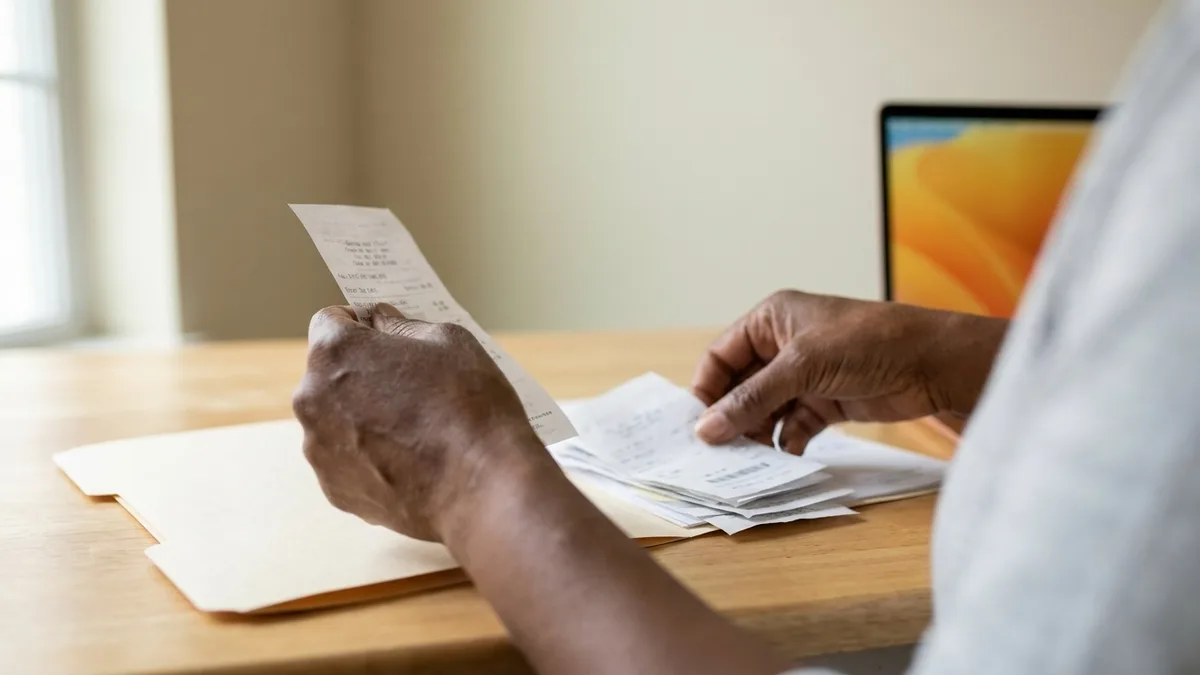
Sorting 60 PDF receipts by hand takes about 45 minutes. Claude's desktop agent did it in 4, and checking the dates took another 8. Twelve minutes instead of 45, if the scans are clean.
The demo you saw sorted that folder in four minutes and got filed away as a novelty. A demo never shows the checking.
Across eight jobs the agent runs 52 minutes and the person spends 126 reviewing and editing. That is 2 hours 6 minutes of 703, against 525 by hand.
So the rule is job by job. Hand over what starts with a file and ends with a file you can check. Keep the sends, the purchases and the regulated data in your own hands.
By the end, you can pick one folder to hand over this week, knowing its run time, its catch and its review cost before you start.
The three-part bill, at a glance
Files, receipts and folders
These first three jobs share one safety property: the agent only sees the single folder you mount, and it asks before deleting. Nothing else on the machine is read, moved, or touched.
That makes them the right starting point. You can watch the run, check the output against the source, and count your review minutes before giving the agent a second job.
1. Sixty unnamed receipts come back as eleven vendor folders

A bookkeeper will take a spreadsheet of receipts. A crammed folder of 60 PDFs, some scanned crooked, is not that.
Mount one folder in Claude Desktop's Cowork and it sees those 60 files and nothing else on your drive, so you pick the boundary before you start.
The PDF skill opens each receipt and reads the vendor off the page, not off the filename. Eleven subfolders come back, named vendor and month. The run takes 4 minutes.
Checking takes 8, so the folder is handable to a bookkeeper in 12 minutes, where doing it yourself runs 45.
Watch the dates: the sorting is sound, but a faded thermal print can flip a date, so spend the 8 minutes on the handful that look off, not all 60.
Anything the agent would delete waits for your approval first, which makes this dull job the safest one to try on a beginner's desktop run.
💡 Tip: Before you run it, sort nothing. Let the agent do the first pass, then spot-check the five oldest receipts by hand.
💡 PRO TIP
Mount, do not paste
Attach the receipts folder through the Claude Desktop folder picker so the agent can only read that directory. Pasting the same files into the chat window gives you a text answer with no sorted folder at the end.
2. Expense exports come back as a four-tab workbook

A four-tab Excel workbook comes back from a 210-row export covering 3 cards, and it opens as a real spreadsheet. The formatting holds, because Cowork's Excel skill writes an actual file rather than pasting a wall of comma-separated text into the chat window.
The old way was 70 minutes of cell-by-cell work in one sitting. Now it is a 6-minute run and 15 minutes of review at month-end.
Category columns, a card breakdown and totals arrive before you have finished your coffee, and a quarter-hour of checking replaces the afternoon.
The catch is naming. The agent invents category labels that make sense to it, not to your accountant, so most of the 15 minutes goes into renaming them to the ones you actually file under. Skim the labels first, then the totals.
Before anything is filed, tie the grand total back to the bank statement. The workbook is a summary, not the record, and the statement is what settles the month. A total that disagrees by even a few dollars means a row dropped out.
A file whose numbers someone else will rely on is worth this check. Fifteen minutes against 70 is a fair trade when the statement sits beside you as the referee.
| Job | By hand (min) | Agent run (min) | Review and edits (min) | Best tool |
|---|---|---|---|---|
| Sort 60 PDF receipts | 45 | 4 | 8 | Claude Desktop with Cowork |
| Build expense workbook | 70 | 6 | 15 | Claude Desktop with Cowork |
| Sweep Downloads folder | 35 | 3 | 6 | Claude Desktop with Cowork (scheduled) |
| YouTube interview to newsletter | 90 | 5 | 25 | Claude Desktop with Cowork |
| Meeting transcript to follow-up | 40 | 2 | 12 | Claude Desktop with Cowork |
| Report PDF to 12 slides | 120 | 8 | 30 | Claude Desktop with Cowork |
| Triage 40 unread emails | 50 | 4 | 10 | Claude Desktop with Cowork + Gmail read-only |
| Public pages to two-page memo | 75 | 20 | 20 | Claude in Chrome |
3. The Downloads folder empties itself every Monday morning
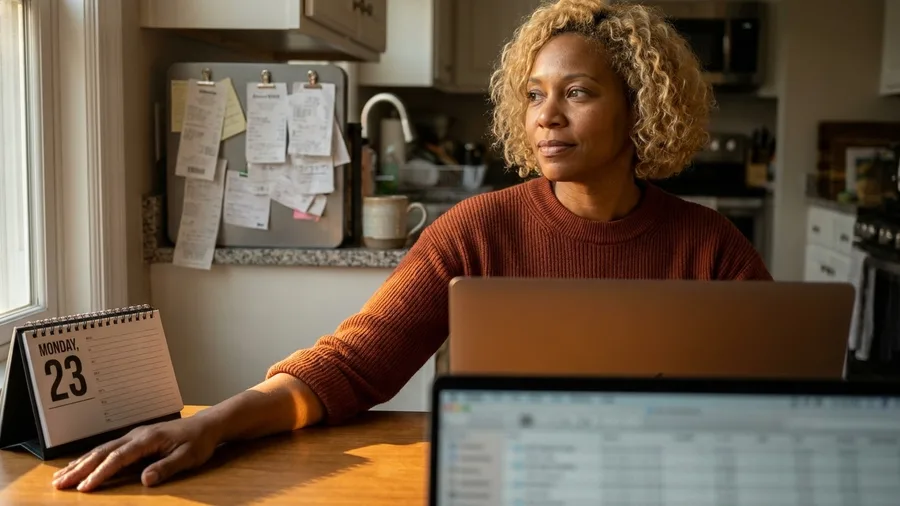
A Downloads folder that refills every week is a chore you already know by heart: 400 files, none of them named, and a slow Sunday of dragging.
If a job ends in a file you checked, it can go on a timer. Schedule a Cowork task for 8:00 a.m. Mondays against that mounted folder alone.
The sweep reads, moves and touches nothing outside it. The run is 3 minutes and the check is 6, against 35 by hand.
Anthropic advises scheduling only low-risk work, and avoiding jobs that touch sensitive files, send messages or spend money. A tidy-up fits. An account does not.
One date matters: Unified Claude is opt-in until November 10, 2026, then on by default with Cowork running even where you switched it off. Your Monday still starts with an empty folder, and the rest of the machine stays as it was.
💡 Tip: Run the sweep manually once a week for three weeks before you set it to run on its own. You will find one or two file types you want kept.
Writing from material you already have
These three jobs start with something you own: a video transcript, a meeting transcript, a report PDF. The agent reads it, drafts from it, and writes a file you can open and edit.
This is where the review time grows. A draft that already sounds like you still needs your opinion, your ordering of the argument, and your check on every number.
4. A YouTube link becomes a newsletter in your voice

Auto-transcription gets names and numbers wrong, so a quote pulled straight from a 45-minute interview can go out misattributed. Paste the link plus a sample of your own writing into Cowork, and it drafts 600 words in that tone.
Then fact-check every quoted line against the audio. The bill: 90 minutes by hand, a 5-minute draft, 25 minutes of review on argument and opinion, not sentences. Skip it if: the source is a private call you were not on.
💡 Tip: Paste in 200 words of your best newsletter, not 200 of your average one. The draft will imitate the sample, for better and worse.
Which job should you hand over first?
5. Transcripts give up action items before you read them
Two minutes of agent time turns a 55-minute meeting transcript into 3 action items and a follow-up email to 6 attendees. By hand that meeting takes 40 minutes of notes and drafting.
The catch is attribution. Speakers get mismatched, so check every owner and every due date against the transcript line before the email leaves your drafts. That check is 12 minutes of the total.
This is client material, not a public video, so it carries a stricter rule. Never paste passwords, client files or medical or financial records into a chatbot. On personal plans, chats may train the models unless you switch that off in settings.
Anthropic also advises against using Cowork on highly sensitive regulated data, and Cowork sits outside its BAA. With owners checked, the follow-up reaches all six people the same afternoon.
⚠️ COMMON MISTAKE
Do not schedule the meeting follow-up
A task that sends a follow-up email on your behalf is exactly what Anthropic's scheduling guidance warns against. Keep this one run manually, with you reading the email before it leaves.
6. A report PDF turns into twelve slides you trim
A 28-page PDF report goes into Cowork and 12 PowerPoint slides come back as a real deck file. PowerPoint output is a built-in skill, so you get slides, not a text outline to paste.
Mount and brief: attach the folder holding the report and ask for a 12-slide summary. You should see a deck with a title, sections and closing slides. A flat outline means the file did not attach.
Trace the numbers: open each slide beside its source page and confirm every figure. A number with no page behind it is the usual snag, so send it back with the page cited.
💡 Tip: Ask for speaker notes on each slide. They make it obvious which numbers came from which page when you check.
Before you hand over the inbox
-
Set the Gmail connector to read-only In the connector settings, allow read but not send.
-
Draft a test run on 5 emails first Check whether the sorting matches your own priorities.
-
Clear any email with passwords or financial records Delete them from the inbox before the run.
-
Keep the job manual, not scheduled Anthropic recommends against scheduled send jobs.
-
Read every reply-now draft before sending The agent cannot know your client history.
The inbox and the open web
The last two jobs have a wider blast radius. The agent reads your inbox or browses public pages, and the difference between a helpful job and a risky one is a permission setting.
Keep both read-only. The moment a job can send, buy, or log in somewhere for you, it stops being a file you can check and becomes an action you cannot take back.
7. Inbox triage stays read-only, so nothing sends itself
Prompt to copy
Read the 40 unread emails in this connected Gmail account. Sort every one into three lists: reply-now, this-week, ignore. For each reply-now email, write a draft reply in my usual tone but leave it unsent. Show the sender, subject and one-line reason on every list. Do not send, delete, archive or label anything.
That instruction asks for sorting and drafts, not answers. The other jobs end in a file you keep; here the agent reaches into an account that can act, so the read-only connector is what makes the run safe.
It reads those 40 emails in about 4 minutes.
By hand the same triage runs 50 minutes. Ten minutes of checking follows the run, and most of it goes to the reply-now list, where a draft can sound certain about a date you never confirmed.
The limit is a setting, not a habit. A connector can be allowed to read and not to send, and that one permission is the whole protection. Anything needing your signature stays a draft, because a reply with your name on it still needs you.
What you keep is an inbox sorted into a short to-do list, with nothing sent until you press send. The 14 minutes of run and review replace the 50-minute read-through.
Read-only versus send permission
Read-only connector
- Sorts only the 40 unread; leaves the rest of the inbox untouched
- Ten-minute check covers reply-now; the other two lists need a glance
- Unsent drafts stay in Gmail until you open and send them
- Nothing leaves the account, so no draft needs a signature check
Send permission
- A run can fire before your review window opens
- Wrong recipient costs a follow-up email and an apology
- Anthropic says skip scheduled jobs that send messages
- Autosend on a connector breaks the send-once-you-press rule
8. Public pages get read with your logins nowhere near

A connector permission is a switch you can set to read-only. The open web has no such switch, and assistants invent links and quotes with total confidence. So every claim in the memo gets opened on the page before it goes in.
The safe route is Claude in Chrome in a separate browser profile. The session reading five competitor pages is then not the session signed into your accounts. Anthropic advises against its built-in browser for sensitive information.
Five public pages become a two-page Word memo with a source list. By hand: 75 minutes. The browsing run: 20 minutes. Your review: 20 minutes, mostly opening links. That is 40 minutes end to end against 75.
Total: 40 minutes and no extra spend on a paid Claude plan, since browser work is included there. The source list is the proof: each claim traces to a page you opened yourself.
💡 Tip: Ask for the source list as the first section, not the last. If a source is missing or invented, you catch it before you read the memo.
Frequently Asked Questions
Do I need to know how to code to use Claude's desktop agent?
No. Cowork is a desktop agent that runs multi-step tasks without coding, through the Claude Desktop app on macOS or Windows. You attach a folder, describe the job, and review what comes back.
Which Claude plan includes Cowork?
Cowork is generally available on all paid Claude plans, launched in January 2026. Current plan prices and limits are on Anthropic's own plans page, so check there before you upgrade.
Can the agent delete my files?
It can, but it must ask for explicit permission before permanently deleting any file. It also pauses before sending data externally, and it can only see the one folder you mount.
Is it safe to give it my Gmail?
Only with the connector set to read-only. Admins can allow a connector to read but not send, and that limit is the whole protection. Keep every reply as a draft you send yourself.
What happens on November 10, 2026?
Unified Claude, which combines Chat and Cowork in one interface, stops being opt-in beta and becomes on by default. From that date Cowork is on too, even where you had previously switched it off.
Can I schedule tasks to run automatically?
Yes, but Anthropic advises scheduling only low-risk tasks. Avoid scheduled jobs that access sensitive files, send messages on your behalf, or make purchases. A Downloads folder sweep fits; an inbox send job does not.
Hand over the file jobs, keep the send jobs
The verdict is by job, not by product. Hand over the ones that start with a file and end with a file you can check: receipts, expense exports, the Downloads sweep, transcript drafts, the report deck.
Keep in your own hands anything that sends, buys, or touches regulated data. That means no scheduled inbox sends, no purchases, and no health records in Cowork, which sits outside Anthropic's business associate agreement.
The first move is small: mount one folder of receipts, watch the whole run, and count your review minutes before you add a second job. The agent's 4 minutes are not the cost. Your 8 are.