

Turning off every ping by hand at dinner took about 40 taps across two nights last week. One built Focus mode takes about four minutes, checking included, and then runs without you.
You have opened Settings > Focus once, met the wall of toggles and closed it again. Meanwhile work mail lands at dinner, the group chat fires mid-workout and the airline app sits three screens under Slack.
Focus never was a single switch. Every mode is a start condition, a list of who and what may reach you, and usually a Focus Filter. Filters do not travel between modes, so each mode works only once set up on its own.
Build each one with a beginning and an ending, or the silenced alerts pile up and arrive at once. Twelve setups follow, and the article gives you the first one to build tonight.
| Setup | Switches on when | Filter or toggle it relies on | Build time |
|---|---|---|---|
| Work Hours Bubble | Time or manual | Mail account and Calendar set filter | About 4 min |
| Three-Minute Family Hotline | Same mode as above | Allow Repeated Calls | Under 1 min |
| Shift Roster Auto-Switch | Shift calendar event | Shortcut plus Share Across Devices | Varies |
| Sleep Schedule Wind-Down | Health sleep schedule | Essential contacts and apps only | About 4 min |
| CarPlay Commute Handoff | CarPlay or car Bluetooth | Messages read aloud or auto-reply | About 2 min |
| Airport Travel Mode | Location or Smart Activation | Custom allow list: airline, Maps, WhatsApp | About 4 min |
| Auto-Starting Workout Mode | Workout starts in Fitness | Allow list only | About 2 min |
| Controller-Triggered Game Session | Wireless controller connects | Party-chat app and squad only | About 2 min |
| Apple Intelligence Triage Mode | Manual or scheduled | Reduce Interruptions judgment | About 1 min |
| Safari Tab Group Reading Room | Time or app | Safari Tab Group plus Low Power Mode | About 3 min |
| App-Triggered Deep Work Lock | Chosen app opens | Messages filter for one conversation | About 4 min |
| Control Center Master Switch | One tap | Resized Focus button and Shortcuts check | About 2 min |
1. The Work Hours Bubble

The answer is narrower than the Work toggle suggests: the job's own Mail account and the Calendar set holding today's meetings, and nothing else. That is the whole build, and it takes about four minutes.
Open Settings, then Focus, then Work, or add a custom mode if the job has its own name. Inside the mode, scroll to Focus Filters and tap Add Filter.
Choose Mail and select the account that belongs to the job, then add a second filter for Calendar and pick the set with today's meetings.
The old way, the Work toggle alone, let the whole inbox land on the same lock screen as dinner.
The new way leaves the phone on in the one place that helps you and holds every personal thread, so the after-hours message from your sister waits until the mode ends.
The catch sits in the word filter. A Mail or Calendar filter changes what the app shows you, not what arrives on the phone, so mail still syncs and the badge still climbs while the mode is on.
You open the app to an empty-looking inbox and a badge that says nine.
The same filter has to be built a second time in Personal mode, because a filter belongs to the mode it was made in and never carries over.
Two taps, twice, and the screen finally earns its keep: work mail and today's meetings in view, everything personal held.
💡 Tip: Name a custom mode after the job (Freelance Client, Shift A) rather than Work. You can then run two work bubbles with different allow lists and stop one without killing the other.
⚙️ Five moves, then the checks that keep it alive
Allow Repeated Calls
One switch in People: a second call from the same person inside three minutes breaks through. Off, and an urgent call stays held.
Mirror it across devices
Share Across Devices copies the mode to iPad, Watch and Mac on the same Apple account. Without it, the Mac still pings.
Start it on a trigger
Time, location, app, CarPlay or Smart Activation. Work built by time fires without a tap; a custom mode opened by hand does not.
Give it an end
Silenced notifications are held, not deleted, and land when the mode ends. No end time means a pile-up at midnight.
Skip it when
You are on call for a delivery or a family emergency. Use Reduce Interruptions instead, which needs Apple Intelligence on.
2. The Three-Minute Family Hotline
A parent and the school office can still get through a silenced phone, on one condition. The first call rings nowhere, and a second call from that same number within three minutes rings through. Apple calls it Allow Repeated Calls.
The switch is not in Settings at large. It sits inside the People section of the mode you want to stay reachable in, so you can have a quiet phone with one person-chased emergency path in it.
Turn it on there and the family needs no rule about calling twice in a panic.
Focus modes that hold the job out are half the story; the phone also has to hold the school office in. That is the same allow-list decision as choosing apps, made one level up, with names instead of icons.
Check before you leave: A mode you create or duplicate starts with this toggle off. Every rebuild means switching it back on before you close the screen, or the hotline quietly does not exist.
Two ways to spend an evening
Phone left alone
- Work mail lands at dinner
- Group chat at midnight
- Bedtime ritual of nine taps
- Morning pile scrolled at breakfast
- Slack and Gmail at the gate
Focus built once
- Work mail held till the mode ends
- Two calls from family get through
- Sleep mode starts itself
- Travel mode on at the airport
- One Control Center tap swaps modes
3. The Shift Roster Auto-Switch
Three minutes at the GitHub page, then a Shortcut. RosterFocus is a project that reads your shift calendar and flips a Focus mode for each event, so a rota that changes every week runs without you tapping anything at 5 a.m.
Apple does not let an app switch a Focus by itself, so the project triggers a Shortcut you build once, and the Shortcut does the switching. Share Across Devices needs to be on for a setup made on the Mac to reach your iPhone.
This is the one place to slow down. The project's requirements can change, so read its GitHub page before you lean on it for a job that pays rent, and keep a manual fallback for the weeks it breaks.
4. The Sleep Schedule Wind-Down
Tap Sleep off at midnight and back on at seven, every night, and the tedium is the point.
The mode can run from the sleep schedule already in the Health app instead. It starts at wind-down, ends at the alarm, and dims the lock screen without a tap.
So the only work left is the allow list, and it should be short. A partner, a parent, the babysitter who has the kids. The colleague forwarding a link at 11pm is not on it, and neither is the group chat.
Held notifications are not deleted. They arrive the moment the mode ends, so a schedule with an end time keeps that morning pile short.
A bedtime with no end would hand over a whole night of pings at once – about eight hours of them, if the phone was loud before.
The cost: about four minutes to build, nothing after that. The mode needs no nightly habit and no monthly check, so the arithmetic only goes one way: one setup, then eight hours of quiet every night.
💡 Tip: Check the morning pile once. If it is all newsletters, move those to a Later delivery and the wake-up badge drops without another mode.
Safe to silence, careful with, never silence
- 🟢 Safe to silence: Slack, newsletters, shopping apps, social feeds — Nothing urgent lives there, and the held pile is short when the mode ends.
- 🟢 Safe to silence: Calendar in Travel mode — Meetings are not booking themselves while you stand at a gate.
- 🟡 Careful: Gmail in Travel mode — Save the boarding pass to Wallet first, because Gmail will not open at the gate.
- 🟡 Careful: Messages as a whole app — Use a conversation filter so one thread stays live instead of the entire inbox.
- 🔴 Never silence: family and the school office — Keep them in People with Allow Repeated Calls on, in every mode you build.
- 🔴 Never silence: airline apps, Maps and Find My — These are the apps that get you home when the day goes sideways.
Every allowance here is a per-mode setting, so check them again in each new mode.
5. The CarPlay Commute Handoff
Prompt to copy
Open Settings > Focus > Driving. Set it to turn on automatically when the phone connects to CarPlay, and add the car's Bluetooth pairing as a second trigger. Allow calls from my partner and my parents. Set Messages to announce new messages aloud. Show me the screen after each step so I can confirm.
That is about two minutes of tapping. The trigger handles itself once the car connects. Messages reads aloud or replies for you, so the screen stays dark and the road keeps your eyes.
One limit holds this back. The CarPlay trigger reaches only cars with CarPlay, so a rental, a second car or an older model needs the Bluetooth pairing added on its own.
Set it once and the phone goes quiet on the driveway, then comes back when the engine stops.
Reduce Interruptions — At a Glance
🧠 Requires
Apple Intelligence on
📋 Allow list
None to write
⚖️ Decides
The phone judges
⏱️ Build time
About 1 minute
🔎 Check
Read held notifications after day one
👤 Best for
People who won't maintain a list
Why it is different
Every other mode runs on rules you wrote; this one runs on the phone's estimate of what matters.
6. The Airport Travel Mode
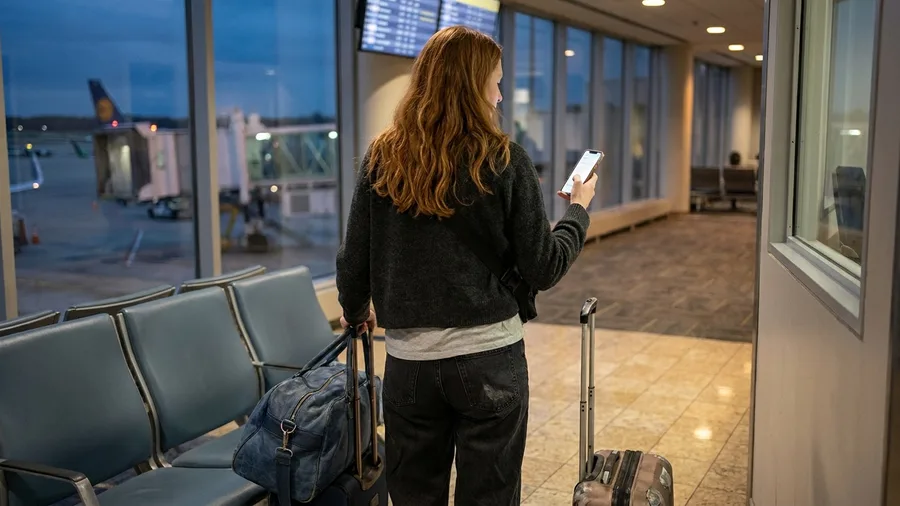
A travel mode is a custom Focus with a short allow list and a location trigger, built for the one place where the phone must stay useful and the office must not.
Allow: open Settings > Focus, tap the plus to add a mode, and name it Travel.
In People and Apps, add Messages, the airline apps, Maps, Find My, Uber or Lyft, and WhatsApp. Six entries, about three minutes.
You should see each one listed under Allowed.
Silence: Slack, Gmail, Outlook and Calendar stay out of the list. What the reader leaves off matters more than what goes on, because the office apps are what bury the boarding pass.
Trigger: set the mode to start by location or Smart Activation, so it comes on at the terminal, not the afternoon the trip was booked. Then the catch: a silenced app is silent.
If the boarding pass sits in Gmail, move it to Wallet before the mode starts, because Gmail will not open at the gate.
The Focus words that actually matter
7. The Auto-Starting Workout Mode
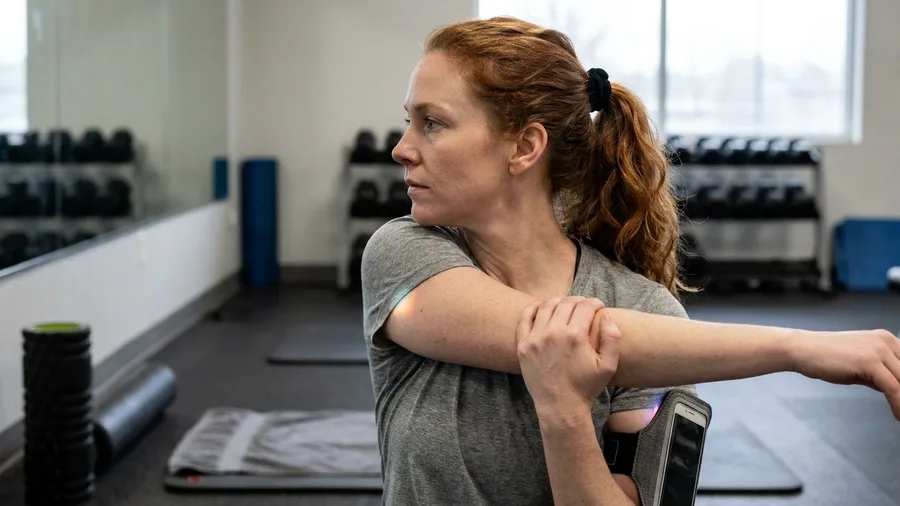
End a workout early and every held notification lands at once, mid-stretch, in the gym. The fix is the off step: let the workout, not a timer, start and stop the mode.
In Settings > Focus, open Fitness and set it to start automatically when a workout begins in Fitness or on Apple Watch.
The trigger is done and free, so only the allow list takes editing. About two minutes, then open People and switch on Allow Repeated Calls, so a partner or a babysitter can reach you mid-run.
Prompt: "Running 5K Thursday 6pm. Draft a 40-word message saying I may miss calls until 6:45 and will reply after."
8. The Controller-Triggered Game Session

Prompt to copy
Draft a 35-word message to my squad chat saying I am in matches from 8 to 10pm, party chat only, and I will answer everything after 10.
The Physical switch is the controller. Pair it once in Settings > Bluetooth, then set Gaming Focus to start automatically when the controller connects and end when it disconnects. No tapping before the first match or after the last.
9. The Apple Intelligence Triage Mode
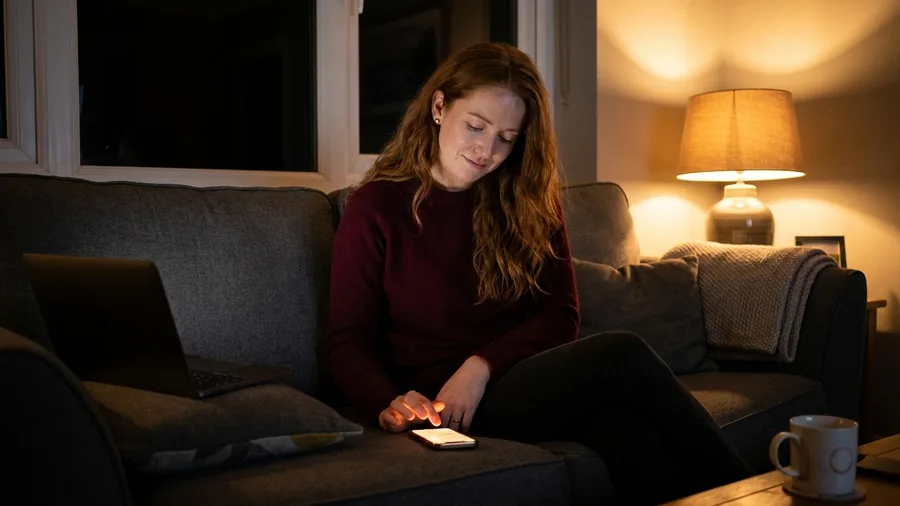
Building an allow list by hand takes about six minutes: scrolling through contacts, picking apps, deciding who matters. The phone can guess instead, if Apple Intelligence is switched on first.
Reduce Interruptions then judges which notifications might be important, with no list to write. Check what it held after one session before trusting it through a full working day. By hand: about 6 minutes. By phone: 0, plus a check.
💡 Tip: The held list is the whole point. Two minutes reading it after day one tells you more than any review of the mode.
10. The Safari Tab Group Reading Room

Twenty tabs open, three of them about the thing you are supposed to be writing. Narrowing the apps themselves does what no machine judgment can: it removes the exits instead of guessing about them.
Build this one inside the mode, with Add Filter, then Safari, then the Tab Group holding the project.
Add a second filter from the same Add Filter screen, this time a system one, and switch on Low Power Mode. That turns down what the phone does in the background during the block.
Set the mode's trigger to a time or to an app, so the reading block has a start as well as a rule.
The catch: the filter changes what Safari shows you, not what loads underneath. Tabs still fetch pages in the background, and third-party apps have been slow to support filters at all.
The built-in ones carry almost all the weight here, so check the mode after a session before relying on it.
What you get is a browser showing one project's tabs and nothing else. The row of distract options is gone. About four minutes to build, and the work stays in front of you until the mode ends.
11. The App-Triggered Deep Work Lock
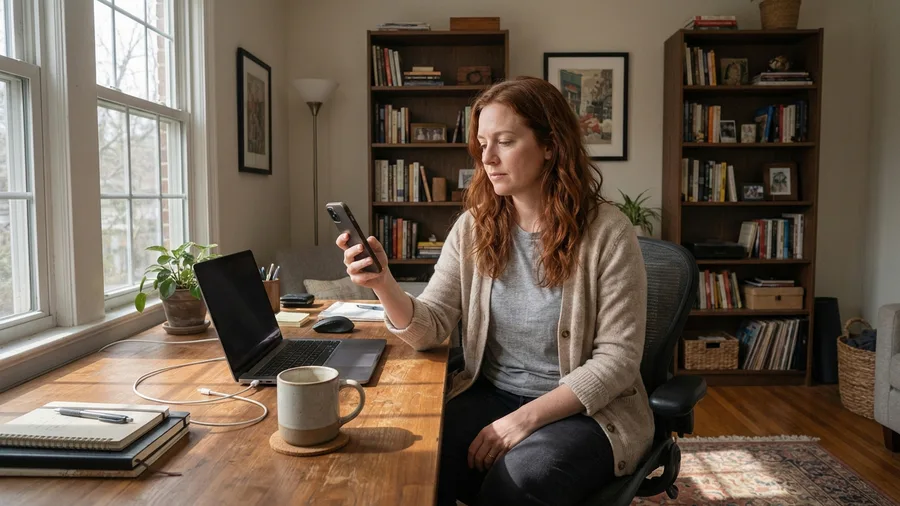
A Safari filter narrows what the browser shows. This setup narrows the whole phone to one app, the one you opened on purpose.
In Settings, set the mode to start automatically by app and choose your writing or coding app. Opening it is the start of real work.
A Messages Focus Filter can allow one conversation rather than all of Messages, so one thread stays live while the rest of the inbox waits. Here is the prompt to draft which thread that should be, pasted into ChatGPT or Claude:
Prompt to copy
I am setting up an iPhone Focus filter that allows exactly one Messages conversation during deep work. Here are the people and groups who message me in a normal week: [paste a list of names, group chats and roughly how often each one writes]. Recommend a single conversation to allow, and write one line explaining why it beats the others for interruptions that actually matter. Give me nothing else.
The reply comes back in seconds as a single name and a sentence.
It is a guess made from your own list, so check it against who actually reaches you in a work week; the one you cannot afford to miss is usually not the one that messages most.
The catch: an app trigger fires whenever the app opens, including a Saturday glance, so pair it with a schedule that keeps.
12. The Control Center Master Switch
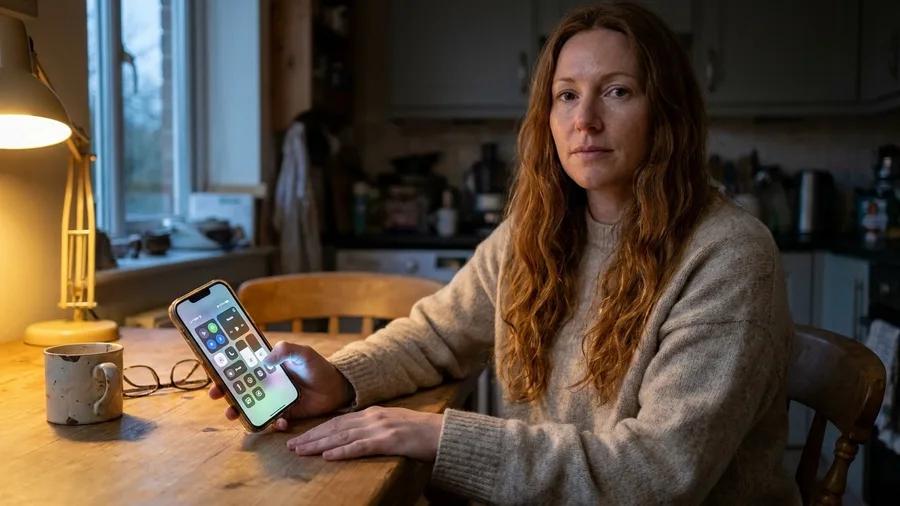
Answer: one resizable button in Control Center, plus one automation with an off step written into it. Eleven modes firing on their own triggers can collide, so something has to sit above them.
Resize the button: in iOS 27, the Focus button in Control Center can be resized from the old 1×1 to 2×2.
That is a corner you can hit one-handed without looking. After the change, you should see a fat Focus square among your Control Center buttons.
Set the trigger: a trigger is what starts a mode on its own, with no tap from you.
In iOS 27, Shortcuts adds options that check which Focus is currently active and branch with "Otherwise if".
One automation can test the current mode and act, instead of a chain of separate ones.
Write the off step: the catch is an automation that starts a mode and never ends it, leaving the phone silent all day.
Write the off action beside the on action before you save. What you get is one button and one automation carrying the week, so every mode on this list gets used.
⚠️ COMMON MISTAKE
A mode with no end time is a dead phone
Silenced notifications are held, not deleted. Every mode that runs past its purpose leaves a pile to scroll through and a phone that looks broken. Set an end time before you set anything else.
Frequently Asked Questions
Do Focus modes block notifications or just hide them?
They silence them rather than delete them. Most arrive when the mode ends, which is why every mode needs an end time. Without one, you get a pile to scroll through and a phone that looks broken.
Do I need to rebuild my filters in every mode?
Yes. A Focus Filter belongs to one mode and never carries over, so the Mail account, Calendar set and Safari Tab Group get set again in each mode you create or duplicate. Allow Repeated Calls is also a per-mode toggle.
Will my family still be able to reach me?
If you put them in the mode's People list with Allow Repeated Calls on. The first call stays silent and a second call from the same person within three minutes breaks through.
Does this cost anything?
The built-in modes and filters are part of iOS, and Reduce Interruptions depends on Apple Intelligence being enabled on your device. RosterFocus is a GitHub project you install yourself, so check its page for current requirements before relying on it.
What happens to a Focus set on my iPhone when I pick up my Mac?
With Share Across Devices on, the mode mirrors to other devices signed in to the same Apple account, including iPad, Apple Watch and Mac. Leave it off and each device keeps its own state.
Can I switch modes faster than opening Settings?
Yes. Add the Focus control to Control Center, and on iOS 27 resize it from 1×1 up to 2×2. One Shortcut can then check which Focus is active, so you can move between modes without touching Settings.
Build the bedtime mode tonight, earn the rest by Friday
Build one thing tonight: the Sleep Schedule Wind-Down, because the evening is the problem you actually feel. Add the Three-Minute Family Hotline toggle inside it before you get into bed.
In the first week add two more: the Work Hours Bubble on Monday morning and the Control Center Master Switch on Friday, so the modes have a button instead of a menu.
Then run the test on each mode: can you say what turns it on, what it lets through and what turns it off? If any answer is missing, delete it. A mode you never turn off is just a phone that stopped working.